
See for yourself, anytime. One 360 camera, all sides.
Open any camera live, next to its reports and alerts. A ceiling 360 camera opens as a panorama, two halves or four views you can turn around in.
Look in on any camera. Wherever you are.
The Live page shows every camera of a site at a glance, each with its latest picture. Pick one and it plays live, in the same browser tab as everything else in CamRA, with nothing to install and no recorder to stand in front of. Here, four cameras of an office building: someone walking into the lobby with the morning papers, a pickup driving into the garage, the street outside.
CamRA watches every recording either way, so you look in when you want to.
- LobbySomeone walks in with the newspapers
- Front LobbyThe front lobby, quiet
- Garage Entrance 2A pickup drives into the garage
- Side Street South 1The street outside
Lobbies, doors and the street outside: CamRA for offices.
One round picture. Every view you need.
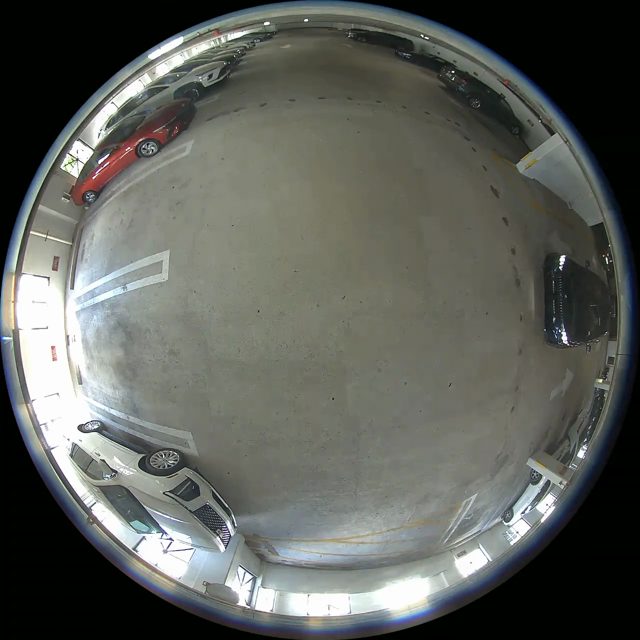
A 360 camera on the ceiling sees the whole floor as one round picture.
CamRA finds the edge of the lens circle on its own, so it knows exactly where the picture is.
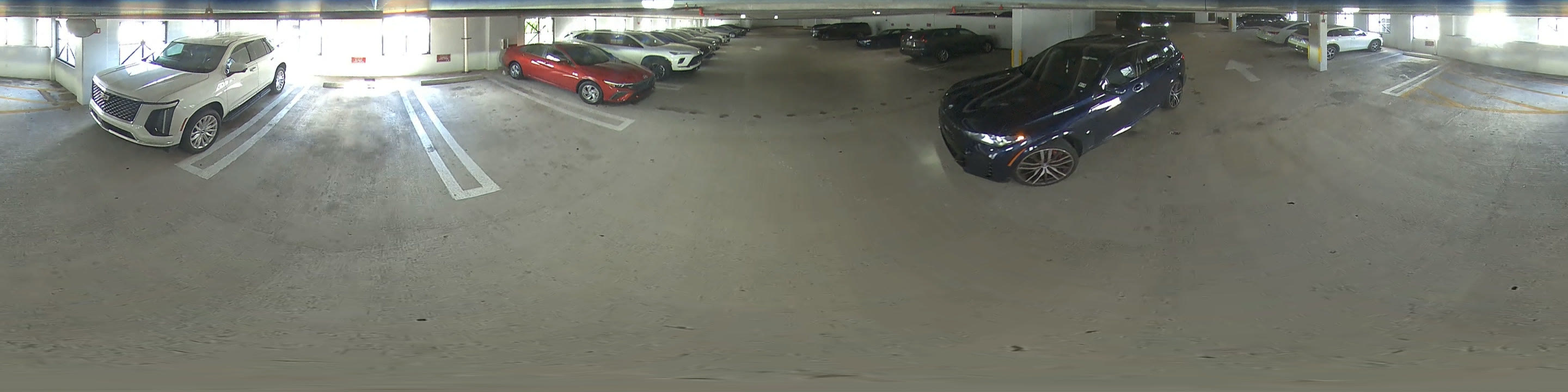
It opens the circle into one panorama of the room, or into two halves when the lens covers a full turn.
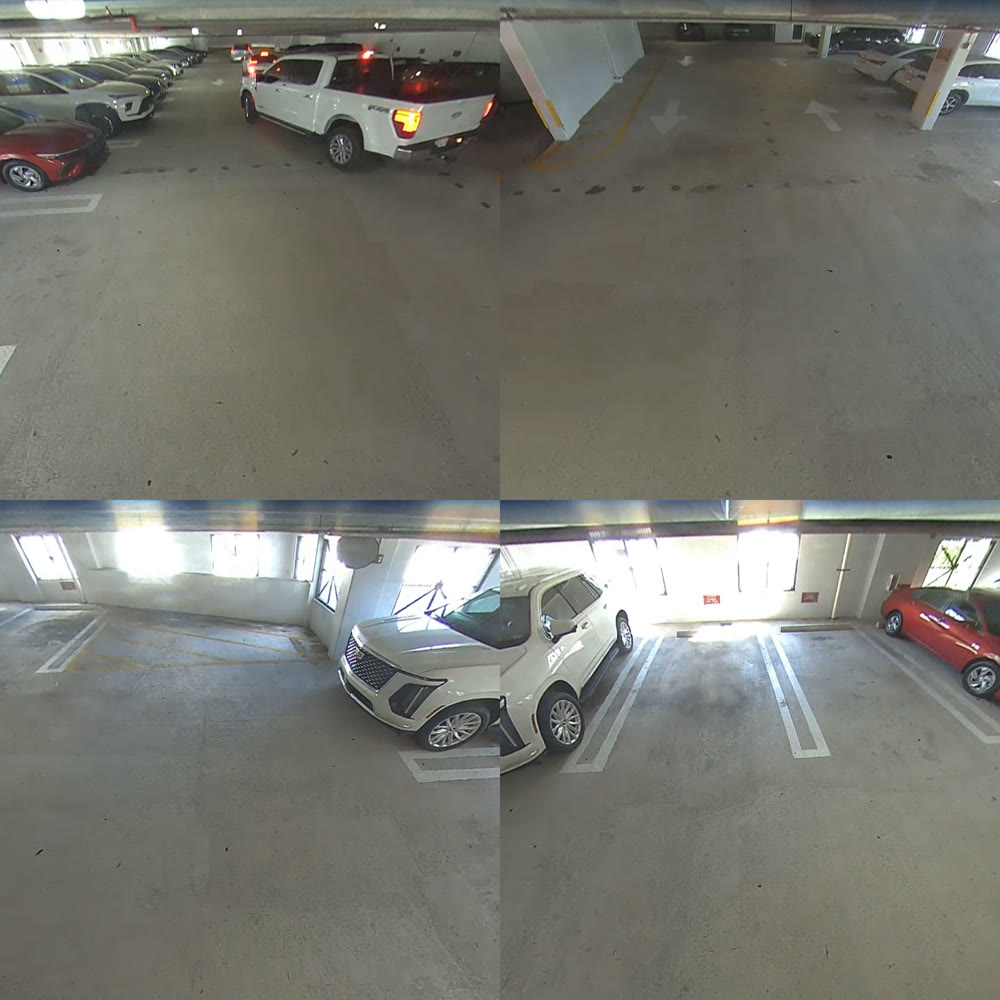
Or four views, each like its own camera pointed at a corner. You choose, per camera, while you watch, and switch any time.


One dialog, once per camera. No one on a ladder.
Auto-detect finds the lens circle, with handles for fine-tuning. Start from a camera model, say how the camera is angled, and mark the horizon so the views stay level. That's it, and it is done once per camera, not once per viewer. The settings stay with the camera, and every view of it, live, uses them from then on.
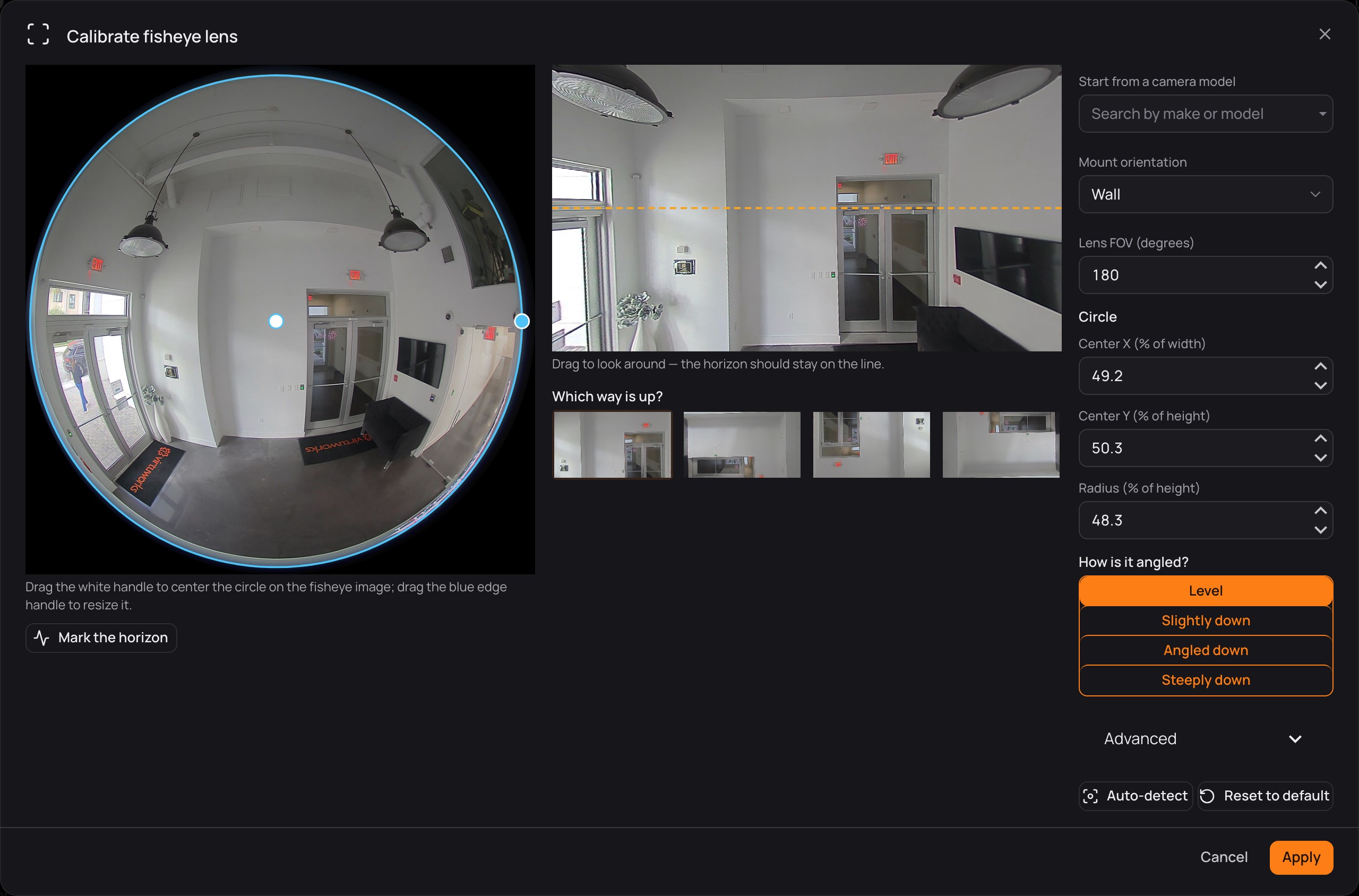

- Lens circleFound for you, with handles for fine-tuning.
- Mark the horizonOne line keeps the view level.
- Start from a camera modelSearch by make or model.
- How is it angled?Level, slightly down, angled down or steeply down.
- Auto-detectOr reset to default and start again.
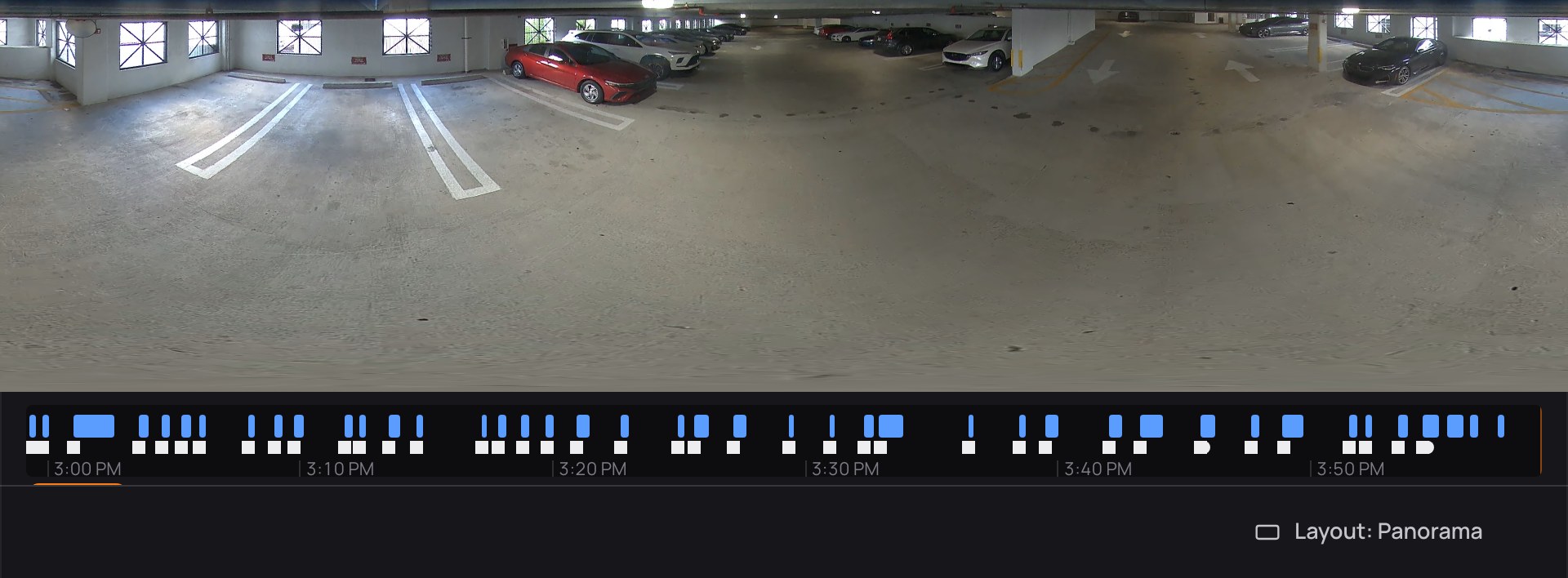

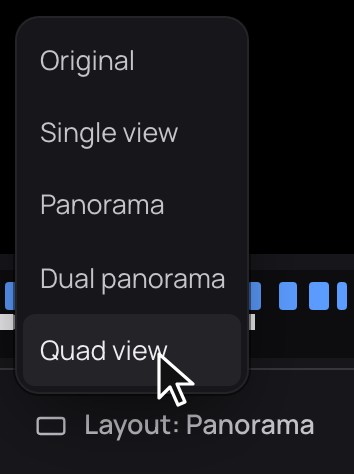

The same in the app. One button away.
This is Parking 360 in CamRA's own Live View, opened as a panorama. The button at the bottom switches between the original picture, a single view, the panorama, the dual panorama and the quad view.
Fixed cameras open the same way, minus the views: one click from the camera list, and it plays live. Under every live picture sits the camera's timeline: go back a few minutes or hours, play what was recorded, then choose Live to come back.
One ceiling camera. Every corner of the garage.
A garage level, covered by one ceiling camera. The dual panorama shows both rows of parked cars at once, and quad view gives each corner its own frame. Recordings open in the same views, with the boxes CamRA drew on what it saw. One camera where you would otherwise need four, with fewer blind spots between them.
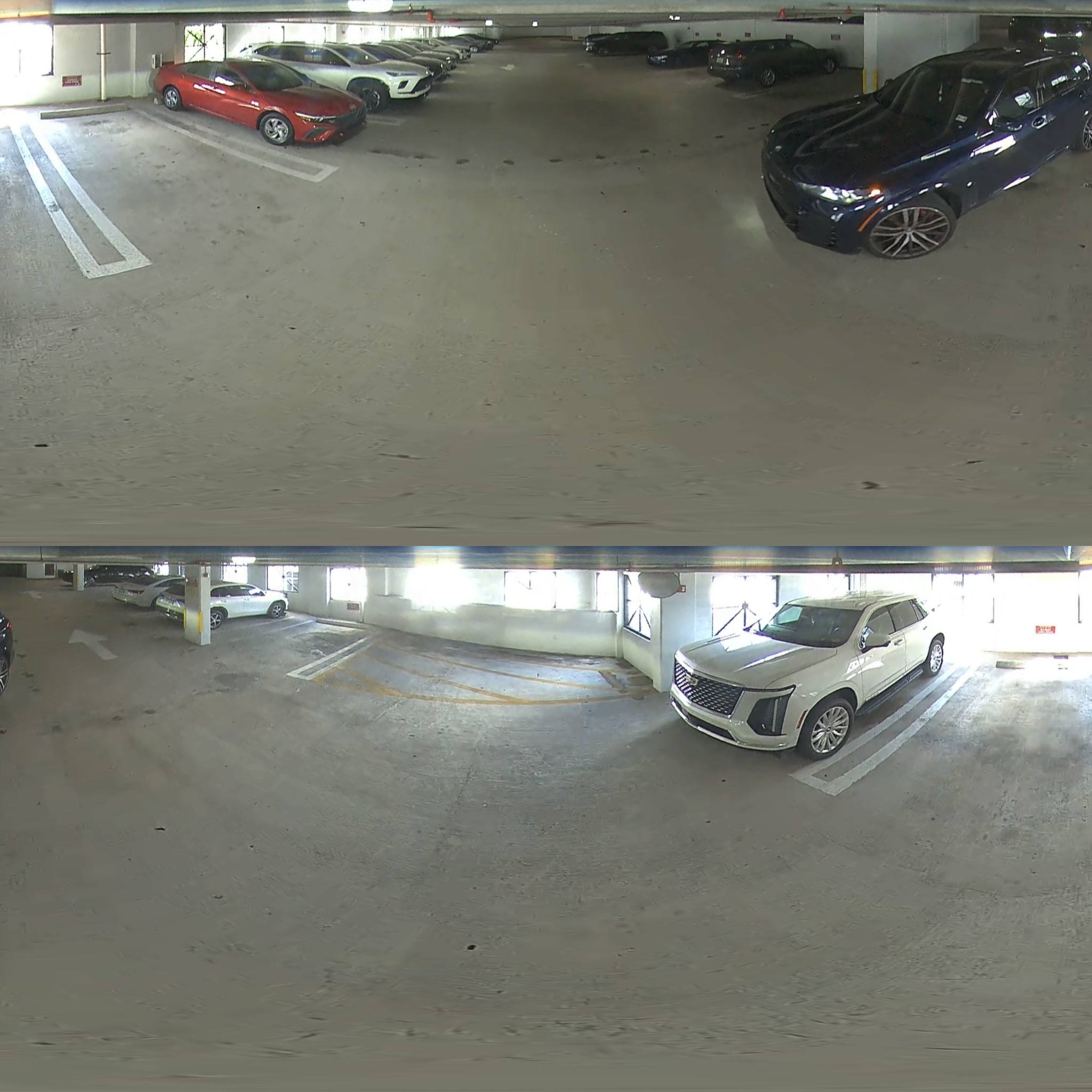
Dual panorama Both rows of parked cars at once.
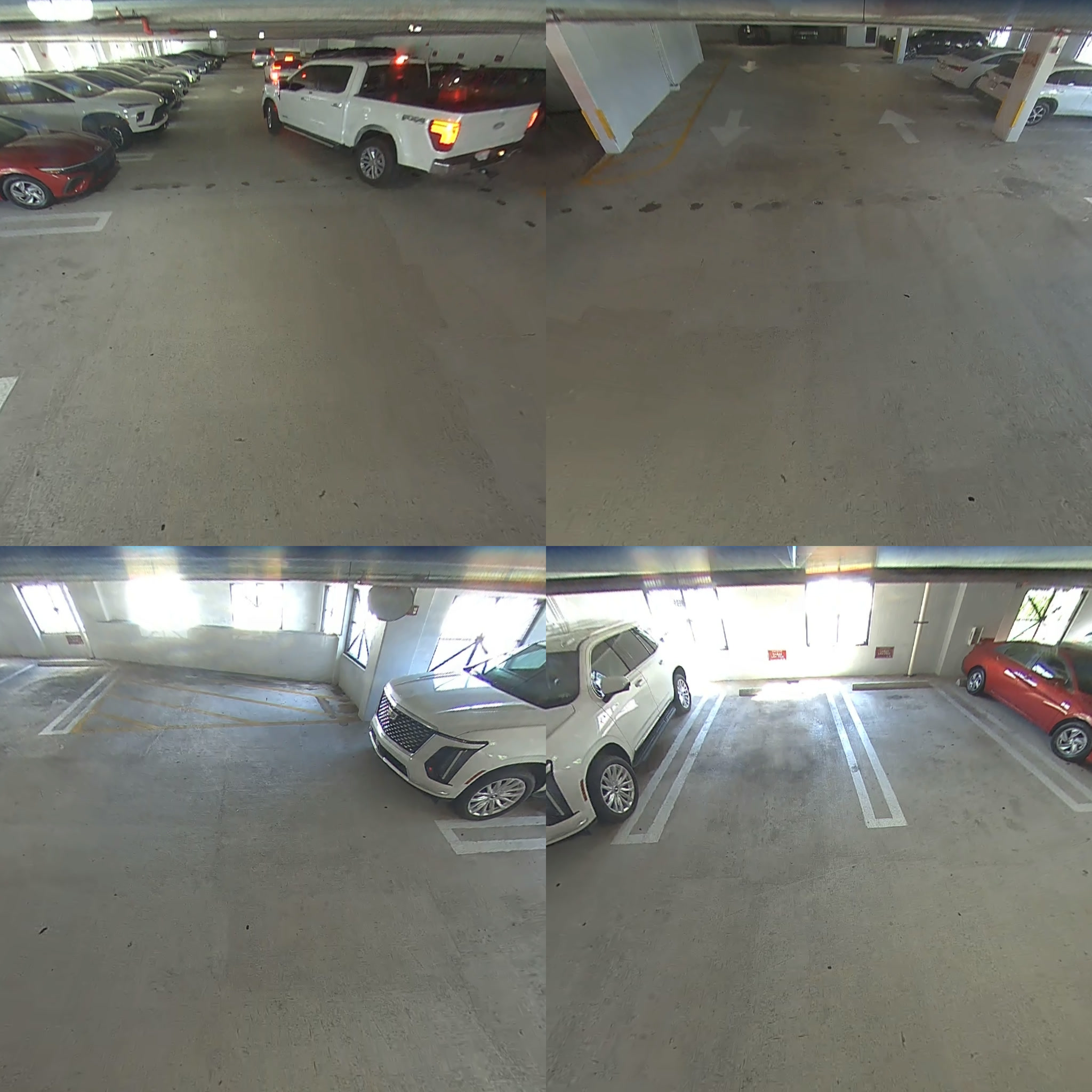
Quad view Each corner of the level in its own frame.
The same garage at night in a recording, in Quad view: a car drives through with the box CamRA drew and its confidence drawn on. In a recording The same views, with CamRA’s boxes on what it saw.


The same garage camera also counts cars: see Vehicles and plates. Garages and lots with one camera per level: 360 for parking.
Someone else needs to see it? Send them the recording.
From any recording, Share makes a link that opens without an account. They press play and see exactly what you saw, from the same camera, at the same moment. Send it to the police, an insurer or a colleague who isn't on CamRA, and it stops working on its own when the time is up. Nobody has to remember to switch it off.
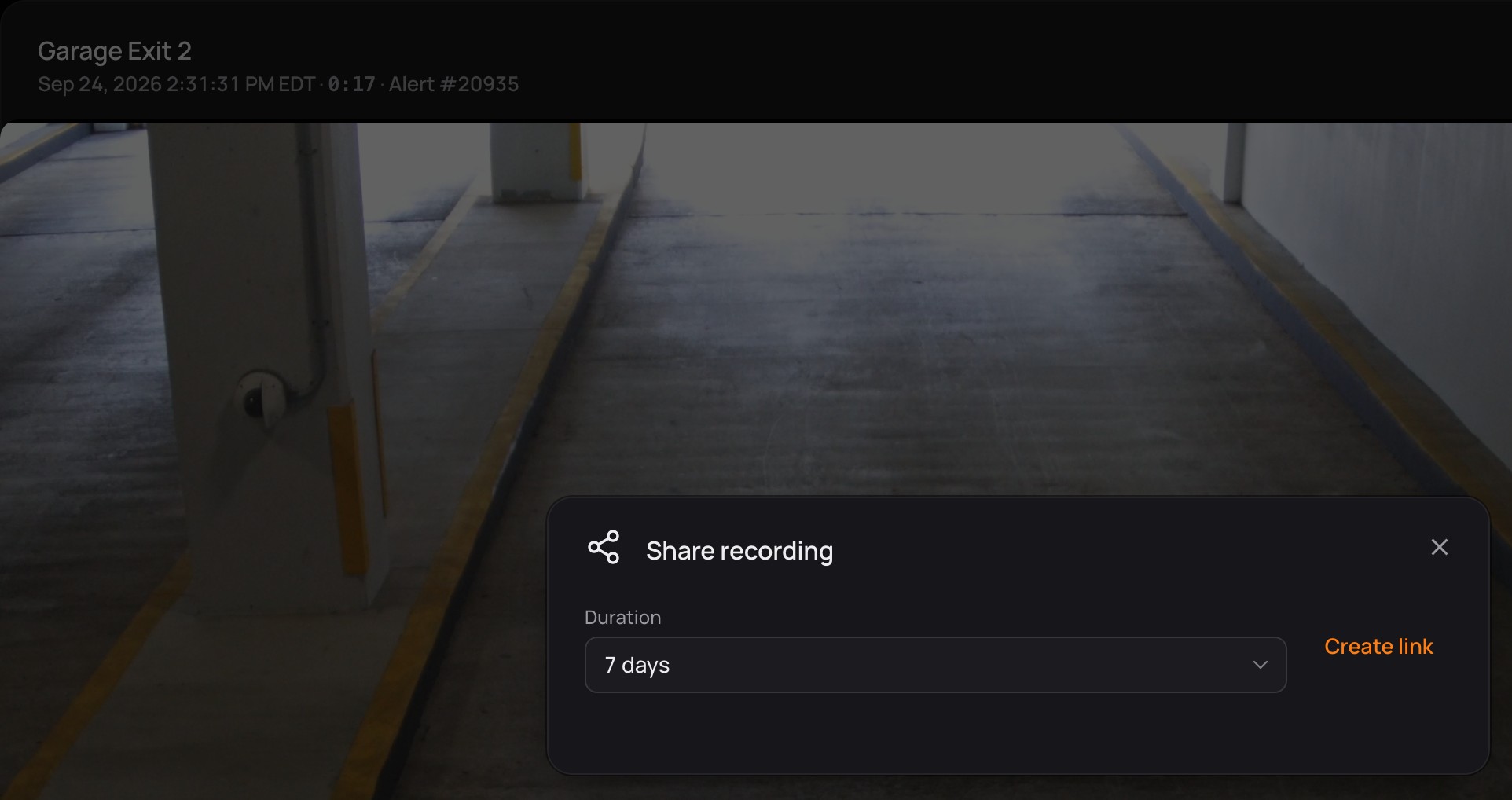

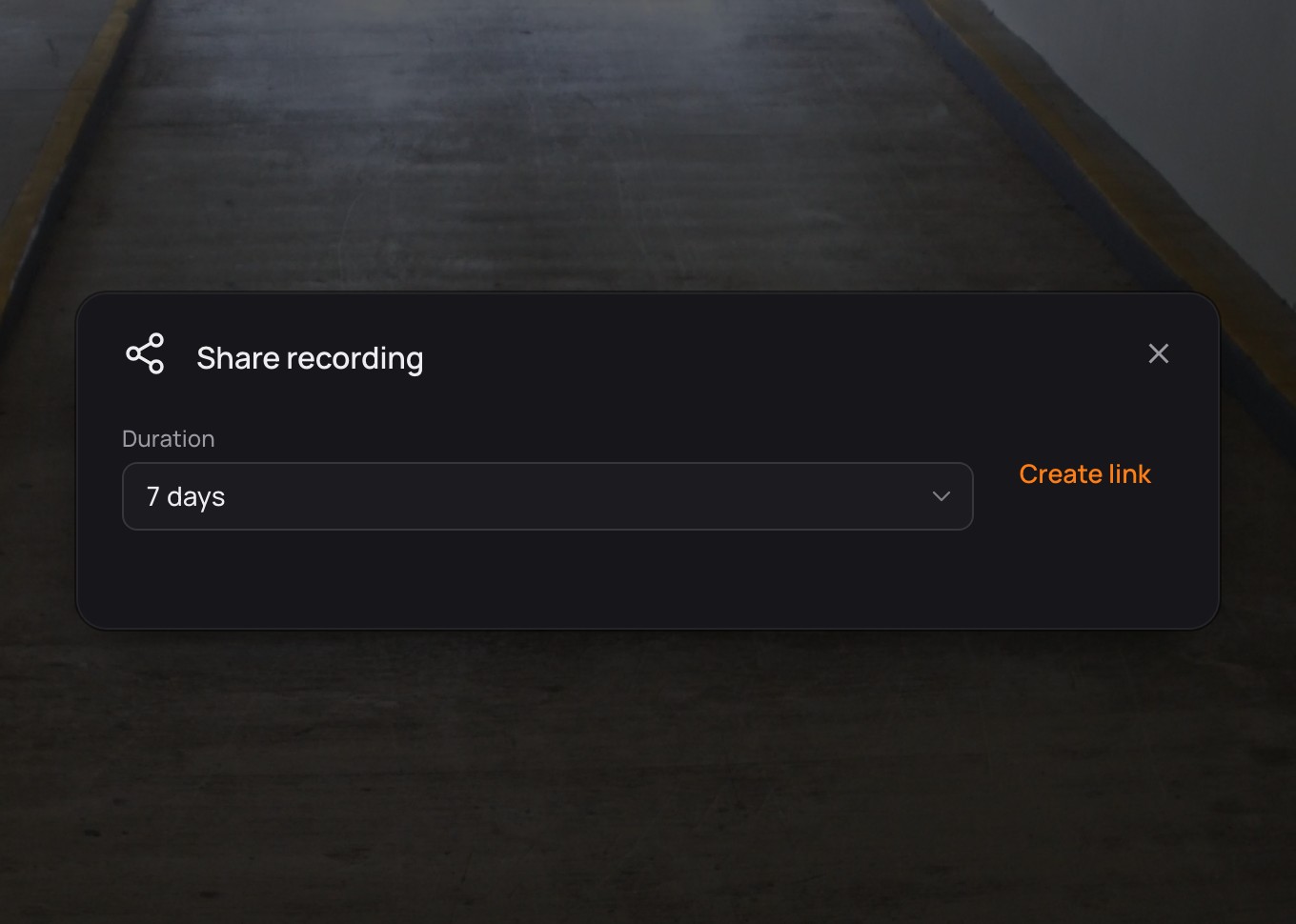

- Works for 24 hours, 7, 14 or 30 days
- No account needed
- Stops working on its own
Wherever you are watching from.
- In a browserAny camera live, every recording, every report, on any computer, with nothing to install. This is where most people watch.Available
- On a video wallThe Windows app spreads your cameras over up to four monitors, in grids from 1×1 to 6×6.Available
- On your phoneOpen the CamRA app on your iPhone, in testing now: every camera live, 360 views included, your alerts with their clips, and the doors you may open. Other recordings open in the web app.In testing
Watching live is one click from the rest.
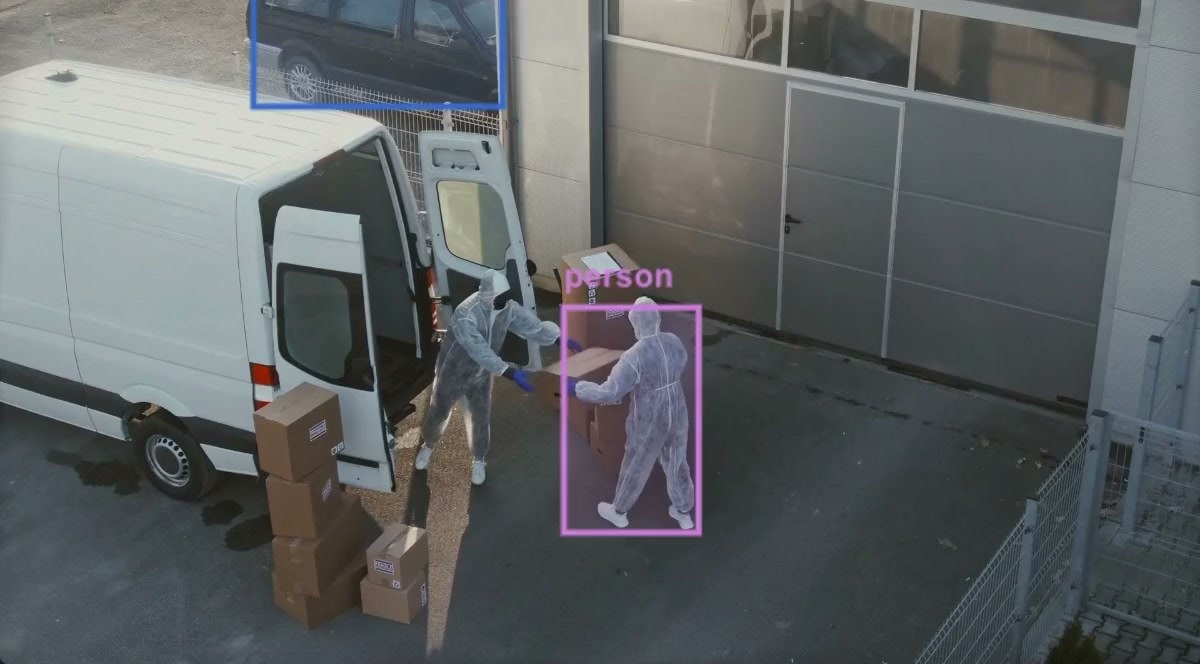




Your site, anywhere. Every angle, live.
Book a demo and we'll open a live 360 camera on your screen.